

Botox memberships to your treatment calendar: 2026 workflow
Instead of manually tracking botox memberships and follow-up appointments, build a treatment calendar that separates clinician-approved visits from reminders to check in. This 2026 workflow helps you organize appointments without treating a recurring calendar entry as permission for another injection.
- Botox memberships need a clinician-led treatment calendar, not automatic injection dates.
- Google Calendar can separate confirmed appointments, tentative holds, and follow-up reminders.
- Skindale Medspa provides personalized medical aesthetics and wellness care for Scottsdale clients.
- Confirm membership terms separately from treatment timing, and update reminders whenever your clinician changes the plan.
Why this matters
Membership administration and medical treatment answer different questions. Membership terms explain how a program works; a clinical assessment determines whether treatment is appropriate and when to reassess your results.
Skindale Medspa is best for Scottsdale clients seeking personalized medical aesthetics and wellness care. Start with a discussion of your goals through Skindale Medspa, then build your calendar around the plan you agree on with your clinician.
A calendar helps you remember that plan. It does not assess your facial movement, review your medical history, or decide whether more Botox is appropriate. Keep those decisions with your treating professional.
For your 2026 planning, the useful outcome is simple: you know which appointments are confirmed, which dates are placeholders, and when to contact the practice. You also avoid confusing an administrative renewal with a treatment deadline.
Before you start
- Gather the written terms. If you are considering or using a membership, obtain its current agreement and ask the provider to explain renewal, cancellation, and how treatments are handled. Do not infer treatment eligibility from the membership name.
- Have your appointment information and calendar access ready. Use Google Calendar in a browser for the steps below. Keep the practice’s appointment confirmation and your clinician’s follow-up instructions beside you.
- Check privacy and booking boundaries first. A personal calendar event does not book an appointment with the practice. Shared calendars and lock-screen notifications can also expose treatment details, so choose neutral titles and check sharing settings before entering medical information.
Set aside 10 minutes to complete the initial setup. This is a planning allowance, not a promised setup time. If you do not yet have a clinical plan, create a consultation reminder rather than a recurring treatment event.
Your calendar structure
Use 1 dedicated calendar for aesthetic appointments if you want to keep them separate from work and family commitments. Keep detailed medical records elsewhere; your calendar needs only enough information to help you attend and prepare.
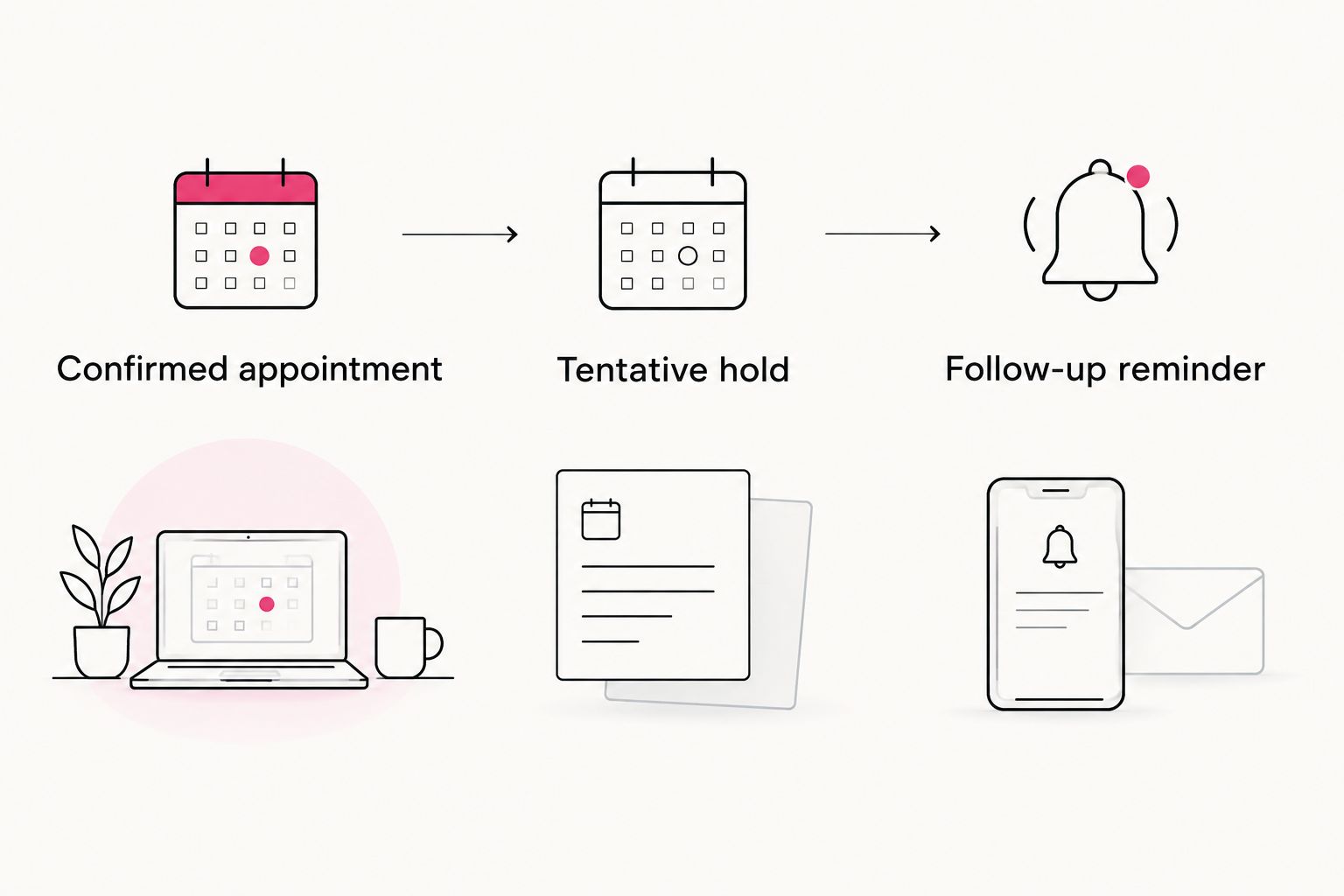
Three entry types cover the workflow. Each has a different purpose, so label them clearly instead of making every entry look like a booked visit.
| Entry type | Best for | Benefit | Limitation |
|---|---|---|---|
| Confirmed appointment | A visit the practice has accepted | Records the agreed date and time | Must be updated if the practice reschedules |
| Tentative hold | Protecting time while arranging a visit | Keeps planning visible | Is not a booking or treatment approval |
| Follow-up reminder | Contacting the practice at the agreed checkpoint | Prompts a conversation about next steps | Does not determine whether treatment is needed |
Choose the entry type before choosing recurrence. A confirmed appointment belongs on its actual date. A tentative hold needs confirmation. A follow-up reminder prompts you to ask a question, not to assume the answer.
Appointment entry
Add the confirmed visit
- Open Google Calendar in a browser and select Create, then Event.
- In Add title, enter a neutral title such as Personal appointment. If your calendar is private and you prefer more detail, use a title that clearly identifies the visit.
- Enter the date and start time exactly as shown in the practice’s confirmation. Enter the end time only when you have a confirmed duration; otherwise, ask the practice before reserving surrounding commitments.
- Choose your dedicated calendar from the calendar selector. Check that you are not saving the event to a shared work or household calendar by mistake.
- Use Add location for the confirmed visit location. In Add description, include practical preparation instructions provided by your clinician, not a copied medical history.
- Leave Does not repeat unchanged for an individual treatment appointment. Select Save, then reopen the event to check the details against the confirmation.
Expected result: you have one clearly labeled event that matches a real appointment. The calendar entry records the booking; it does not create it.
For your 2026 calendar, make the practice’s latest confirmation the source of truth. If a message and an older calendar entry disagree, resolve the difference with the practice before making travel or work arrangements.
Add a tentative hold when needed
If you need to protect time before the practice confirms a visit, create a separate event with Tentative hold in the title. Do not add clinician instructions as though the appointment is already approved.
Include a short description identifying the action you still need to take: contact the practice, confirm the time, or discuss the next assessment. Once booked, replace the hold with the confirmed appointment rather than keeping both entries.
Expected result: you can see your planning window without mistaking it for a scheduled treatment.
Reminder settings
Configure appointment notifications
- Open the confirmed appointment and select the pencil icon to edit it.
- Select Add notification and choose a reminder time that gives you room to review preparation instructions.
- If helpful, add a second notification for departure planning. Use 2 reminders only when they serve different purposes; duplicate alerts add noise without clarifying what to do.
- Select Save and inspect the event to confirm that the notifications are attached to the correct appointment.
- Check your device’s notification permissions and lock-screen previews. Use neutral event titles if other people can see your screen.
Expected result: the appointment has reminders you can act on, and the event title reveals only what you intend to share.
A reminder should tell you what action comes next. Review instructions is useful before a visit; leave for appointment is useful nearer the start time. Neither reminder should tell you to stop a medication unless that instruction came directly from your treating clinician.
Create the follow-up checkpoint
- Select Create, then Event, and enter Follow-up reminder in Add title.
- Set the date your clinician recommended for contacting the practice or reviewing your results. If no checkpoint was given, ask for one rather than choosing a treatment interval yourself.
- In Add description, write the purpose of the check-in: discuss results, ask about a concern, or arrange an assessment.
- Leave Does not repeat unchanged unless the reminder is administrative rather than clinical.
- Add a notification and select Save.
Expected result: your calendar prompts the agreed follow-up conversation without assuming you need another treatment.
Membership review
Memberships can involve administrative tasks that belong on a different schedule from treatment. Keep renewal or cancellation reminders distinct from appointment entries so neither gets mistaken for the other.
- Read the current agreement and identify any dates requiring action from you.
- Create an event titled Membership review. Enter the relevant date from the agreement, not a date inferred from your last treatment.
- In Add description, list the questions you need answered. Examples include how to change the arrangement, what happens after cancellation, and whether unused services have restrictions.
- For a genuinely recurring administrative review, select Does not repeat, then Custom. Match the recurrence to the written terms and select Done.
- Add a notification, select Save, and check that this event is separate from all treatment appointments.
Expected result: you have an administrative reminder that follows the agreement without generating recurring injection appointments.
When reviewing botox memberships in 2026, ask the provider to distinguish program participation from clinical suitability. A membership should not be the reason to proceed with treatment that your clinician advises against.
Keep a brief record of answered administrative questions outside the calendar if needed. Avoid storing account credentials, payment information, or sensitive health details in event descriptions.
When your treatment plan changes
A useful second workflow starts with an updated plan rather than a new booking. Use it whenever your clinician changes the follow-up recommendation, the practice reschedules a visit, or you decide to pause and discuss your goals.
- Confirm the change. Read the practice’s updated instructions and clarify anything that conflicts with an older message.
- Edit the appointment. Change the existing event instead of creating a duplicate. Update its status if the new date is still tentative.
- Review the reminders. Check that notifications still leave enough time for the preparation or travel task they support.
- Remove obsolete holds. Delete placeholders that no longer serve a purpose, and revise follow-up reminders to match the updated clinical plan.
- Check administrative dates separately. A treatment change does not automatically change membership terms. Ask the provider which administrative actions, if any, are required.
Expected result: your calendar reflects the current plan, with no old appointment competing for your attention.
Give this workflow a quick review whenever a change occurs during 2026. Do not wait for the old reminder to appear; by then, it can be difficult to tell which entry is current.
Troubleshooting
Your calendar shows a visit, but the practice has no booking
A personal event is not an appointment request. Contact the practice, obtain confirmation, and label the event Tentative hold until the booking is accepted. Do not arrive based only on your calendar entry.
A recurring event keeps creating treatment dates
Open the recurring series and remove future treatment placeholders that were never confirmed. Replace the series with a follow-up reminder tied to your clinician’s instructions. Keep administrative recurrence separate.
The appointment time differs between devices
Check the event’s time zone and your calendar’s display settings. Compare the displayed time with the practice’s confirmation, especially when traveling. Ask the practice to clarify any remaining discrepancy before changing the booking.
Notifications do not appear
Check the event’s notification settings, device permissions, and focus or do-not-disturb settings. Save a test event with a nearby reminder to check delivery before relying on the calendar for an appointment.
Treatment details appear on a shared screen
Change the event title to neutral wording and remove unnecessary details from the description. Review calendar sharing and lock-screen previews. These steps reduce exposure; they do not turn a personal calendar into a medical-record system.
Customize your workflow
Keep the same structure if you discuss other aesthetic treatments: confirmed appointment, tentative hold, and follow-up reminder. Let the clinician decide the sequence and preparation requirements when treatments are combined; a convenient calendar gap is not evidence that two procedures should be scheduled together.
Skindale Medspa offers personalized medical aesthetics and wellness care. Bring your current appointment list and goals to the consultation so the discussion addresses your whole plan, rather than an isolated reminder on your phone.
You can also separate personal gift planning from clinical scheduling. The Skindale Medspa gift ecard is a separate reference for gifting; it does not establish membership terms, treatment eligibility, or an appointment.
For the rest of 2026, keep your calendar deliberately simple. Retain entries that prompt a real action and remove placeholders that no longer match your plan. More reminders are not necessarily more useful reminders.
FAQ
How do I add botox memberships to my treatment calendar?
Separate membership administration from clinical appointments. Add confirmed visits from the practice’s booking confirmation, follow-up reminders from your clinician’s instructions, and membership review dates from the written agreement.
Should I make Botox appointments repeat automatically?
Do not use automatic calendar recurrence as a treatment schedule. Enter confirmed appointments individually and let your clinician determine whether and when another treatment is appropriate.
Does a Google Calendar event book my Botox appointment?
No, a personal Google Calendar event does not book an appointment with the practice. Keep it labeled as a tentative hold until the practice confirms the visit.
What should I ask before joining a Botox membership?
Ask for the written agreement and an explanation of renewal, cancellation, treatment handling, and any restrictions on unused services. Discuss clinical suitability separately with your treating professional.
How often should I put Botox treatments on my calendar?
Use the follow-up plan your clinician recommends rather than a universal recurring interval. Your calendar should record that plan, not decide it.
What should I do if my treatment appointment changes?
Update the existing event using the practice’s latest confirmation. Review its reminders, remove obsolete holds, and check whether any separate membership action is required.
Can I keep medical details in my calendar description?
Keep sensitive medical information out of ordinary calendar descriptions. Use brief practical notes, check sharing settings, and discuss medical concerns directly with your clinician.
How can Skindale Medspa help me plan aesthetic treatments?
Skindale Medspa provides personalized medical aesthetics and wellness care in Scottsdale. A consultation lets you discuss your goals and clinical questions before organizing appointments around an agreed plan.
One last thing
The most useful entry in your treatment calendar can be a reminder to ask a question, not an appointment to receive another injection. Give that reminder a clear action, such as discuss results, and leave the treatment decision open until you speak with your clinician.
If your goal is a natural, refreshed look, schedule a personalized consultation to discuss what fits your needs. Bring your calendar as a planning aid—not as a deadline your treatment has to meet.